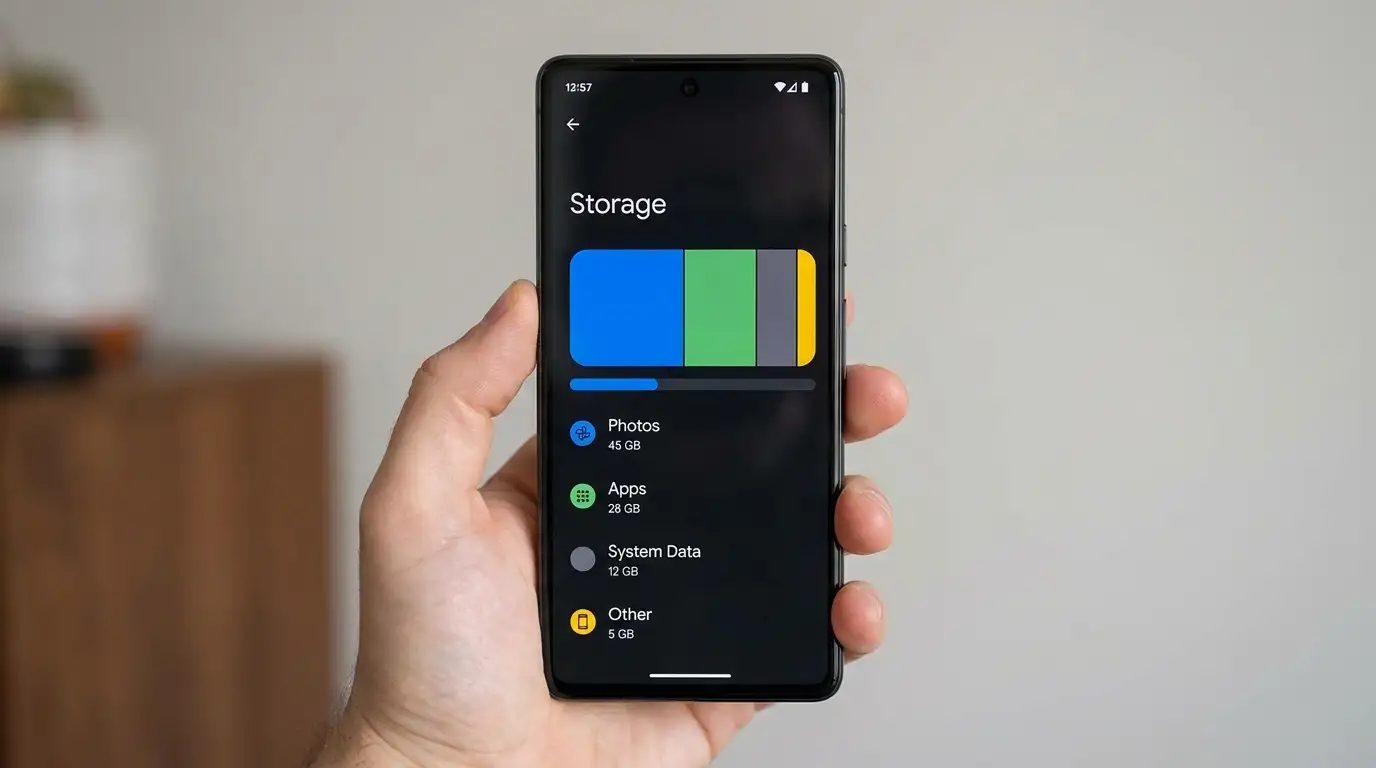
"Storage almost full" is one of the most common phone notifications, and the instinctive reaction — mass-deleting photos — is usually the wrong fix. App caches, duplicate downloads, and offline media quietly account for more space on most phones than the camera roll ever does.
This guide walks through finding the real culprit, clearing it safely, and dealing with a phone that's slow, not just full — two problems that often get blamed on each other. Not sure how much storage your phone actually has? Use WhatPhone to identify your exact model and its storage tier.
Step 1: Find Out What's Actually Using Your Storage
Both iOS and Android have a built-in breakdown that categorizes storage use — always check this before deleting anything, since guessing usually means deleting the wrong thing.
iPhone: Settings → General → iPhone Storage
This shows a bar chart by category (Apps, Photos, Media, System) and, further down, a per-app breakdown with a specific recommendation next to the largest offenders.
Android: Settings → Storage
Shows the same category breakdown; tapping "Apps" sorts every installed app by total size, including its cache, separately from its core install size.
Step 2: Offload Photos and Videos to the Cloud
iPhone: Enable "Optimize iPhone Storage"
Settings → [Your Name] → iCloud → Photos. This keeps space-saving thumbnails on your device and stores full-resolution originals in iCloud, downloading the original automatically the moment you open or edit that photo.
Android: Enable Google Photos backup and "Free up space"
Once your library is fully backed up, Google Photos → Profile → Free up space removes the locally stored originals for photos already safely backed up, keeping only a compressed preview on-device.
Step 3: Clear App Caches and Unused Apps
- Clear individual app caches — Android: Settings → Storage → Apps → [app] → Clear cache. This removes temporary files only, not your login or saved data.
- Offload unused apps automatically — iPhone's "Offload Unused Apps" (Settings → App Store) removes the app binary but keeps its data, so reinstalling restores everything instantly.
- Delete duplicate downloads — check your Files or My Files app for forgotten downloaded PDFs, videos, and installer files sitting in a Downloads folder.
- Manage podcast and offline map downloads — these can silently reserve several gigabytes if auto-download is left on for shows you no longer follow.
Step 4: Manage AI Model and Offline Data Storage
On-device AI features covered in our AI assistant guide require downloading compact language models directly to your phone — typically 4-7GB combined, as a one-time download rather than an ongoing drain.
Review AI model storage
iPhone: Settings → Apple Intelligence & Siri shows the models installed. Android: Settings → System → Advanced → Gemini or Settings → Apps → Android System Intelligence shows a similar breakdown.
Disable features you don't use to reclaim their download
Turning off a specific on-device AI feature (like generative image editing) can free the several hundred megabytes to a few gigabytes that its dedicated model occupies, without disabling the entire assistant.
Step 5: Speed Up a Slow Phone Without a Factory Reset
A full phone and a slow phone are related but not identical problems — a phone can run slowly even with free space if background processes or outdated software are the real cause.
Restart before anything else
A simple restart clears accumulated background processes and memory leaks that build up over days of uptime — this alone resolves a large share of "my phone is suddenly slow" complaints.
Update to the latest OS and app versions
Software updates frequently include performance and memory-management fixes specifically for the slowdowns users report after a previous update — an outdated build is a common, overlooked cause.
Disable heavy live wallpapers, widgets, and animations
Live wallpapers and constantly-refreshing widgets run continuously in the background. Turning these off, or reducing motion/animation settings, noticeably improves responsiveness on older or storage-constrained devices.
Storage pressure and heat also affect battery performance over time — see our battery health guide for how the two interact.