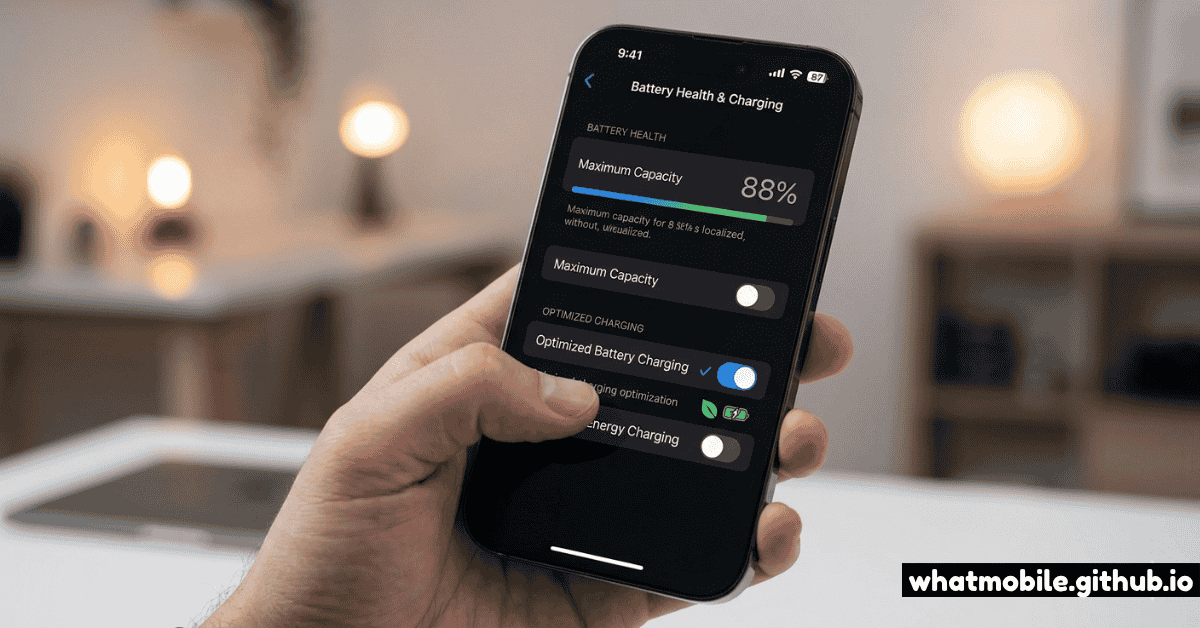
Your smartphone's battery is a consumable. Every charge cycle permanently reduces its maximum capacity — but how quickly it degrades is almost entirely within your control. The difference between a phone that holds 95% capacity after two years and one that drops to 75% is almost never the hardware. It's the habits.
Lithium-ion batteries, the chemistry inside every modern smartphone, are sensitive to three things: voltage stress (charging too high or discharging too low), heat, and charge rate. Understanding these three levers puts you in control. To follow this guide effectively, identify your exact phone model with WhatPhone first — battery health settings differ by manufacturer and OS version.
Step 1: Understand How Lithium-Ion Batteries Degrade
Lithium-ion cells degrade through a process called SEI layer growth (Solid Electrolyte Interphase). Each charge cycle causes tiny chemical deposits to build up on the anode, reducing the number of lithium ions that can shuttle between electrodes — and therefore reducing capacity.
Key facts about degradation:
- A "charge cycle" is 100% of total capacity used, not one plug-in. Charging from 50% to 80% uses 30% of a cycle. It takes about 3–4 partial charges to complete one full cycle.
- Keeping a battery at high state of charge (above 80%) accelerates degradation — even if you're not actively charging.
- Heat is the #1 enemy. Every 10°C above 25°C roughly doubles the rate of chemical degradation.
- Manufacturers rate most phone batteries for 500 full charge cycles to 80% capacity. With good habits, you can reach that in 3–4 years rather than 18 months.
Step 2: Set the Optimal Charging Window (20–80 Rule)
The 20–80 rule is the single most evidence-backed habit for battery longevity. Keep your charge level between 20% and 80% as much as possible — this "partial state of charge" minimises both high-voltage stress at the top and deep-discharge stress at the bottom.
How to implement this on your device:
- iPhone (iOS 17+): Settings → Battery → Charging Optimization → select 80% Limit (charges to 80% and holds there) or Optimized Battery Charging (learns your schedule and only completes to 100% when needed).
- Samsung Galaxy (One UI 5+): Settings → Battery → More Battery Settings → Protect Battery. This hard-caps charging at 85%.
- Google Pixel: Settings → Battery → Adaptive Charging. Enables a smart charge curve that holds at 80% and completes to 100% just before your alarm.
- Other Android: Check your manufacturer's battery settings. Many OEMs (OnePlus, Xiaomi, OPPO) now include a charge limit feature. Third-party apps like AccuBattery can alert you to unplug at 80%.
Step 3: Manage Heat — The Biggest Degradation Factor
Heat damages batteries faster than almost any other factor. Your phone generates heat during charging, heavy processing (gaming, video editing, navigation), and from external sources (sun, hot surfaces).
Practical heat management steps:
- Remove thick cases while fast-charging — silicone and leather cases trap heat. The 5–10°C temperature difference matters over hundreds of cycles.
- Never charge on soft surfaces (beds, sofas) — this blocks ventilation and raises charging temperature significantly.
- Don't leave your phone in a car on a hot day. Interior car temperatures can reach 60–70°C on a summer day — well into the zone that permanently damages cells in minutes.
- During gaming sessions, put the phone into Game Mode with thermal limits, or take short breaks. If your phone regularly gets too hot to hold comfortably during gameplay, that's a warning sign.
- Wireless charging runs hotter than wired. For overnight charging, use a wired charger with charge limiting enabled.
Step 4: Use Fast Charging Strategically
Fast charging (30W, 65W, 120W+) is convenient but does accelerate heat generation and therefore wear — particularly in the upper charge range. The good news: modern fast charging is intelligent. Most phones slow down significantly above 80% regardless of the charger plugged in.
A sensible fast charging strategy:
- Use fast charging when you need it — before a meeting, before travel, when you're rushed. That's what it's for.
- For overnight or desk charging, use a slower 10–18W charger. It runs cooler and with a charge limit at 80%, it's the kindest possible charging regime.
- Avoid wireless fast charging (15W+) for long sessions. Qi2 and MagSafe at 15W run hotter than wired 20W. Great for a quick top-up, not ideal for hours.
- If your phone supports it, use the manufacturer's own charger. Third-party chargers may not implement the thermal management protocols of the OEM charger.
Step 5: Check Your Battery Health Score
Monitoring your battery health gives you a baseline and helps you catch abnormal degradation early. Here's how to check it on each platform:
- iPhone: Settings → Battery → Battery Health & Charging. You'll see a Maximum Capacity percentage. 100% is new; Apple flags a service recommendation below 80%.
- Samsung Galaxy: Dial
*#0228#for a basic battery status, or use the Samsung Members app → Get Help → Interactive Checks → Battery for a full diagnostic. - Google Pixel: Settings → About Phone → Battery. Shows charge cycles and estimated health.
- All Android: AccuBattery (free) is the most respected third-party battery health app — it tracks wear level, charge cycles, and estimates remaining capacity in mAh with remarkable accuracy after a few weeks of use.
Step 6: Software Settings That Reduce Battery Stress
Beyond charging habits, several system settings reduce how hard your battery works day-to-day — slowing the rate of charge cycles and thereby preserving long-term health.
- Reduce screen brightness and use auto-brightness. The display is the largest battery consumer on modern phones. Dropping brightness from 100% to 60% can halve display power draw.
- Enable Dark Mode on OLED screens (iPhone XS+, most flagship Android). Black pixels on OLED are physically off — switching apps to dark theme can save 20–30% display battery drain.
- Limit background app refresh. On iPhone: Settings → General → Background App Refresh → Off. On Android: Settings → Apps → select app → Battery → Restricted.
- Use Wi-Fi over cellular where possible. Cellular radio (especially 5G) consumes significantly more power than Wi-Fi. See our 5G battery management guide for detailed settings.
- Disable location services for apps that don't need it. Constant GPS polling is a background battery drain many users never notice.