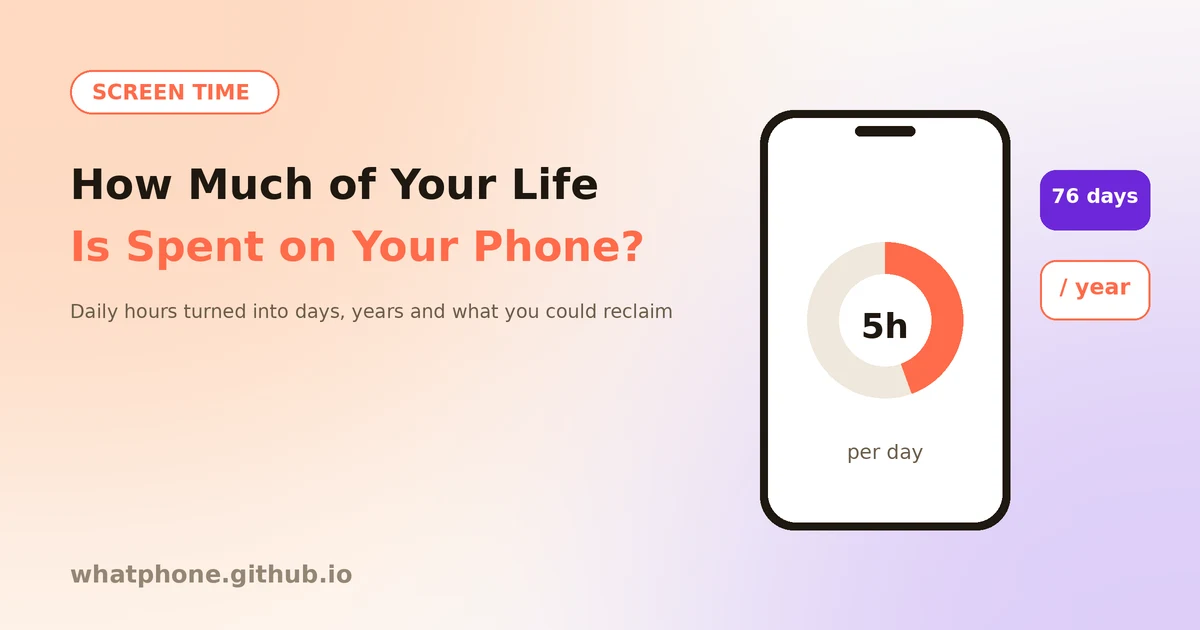
Most of us guess our screen time and guess low. The good news is that your phone already tracks it, and a few minutes with the numbers can change how you use your day. This guide shows how to find your real figure, turn it into days and years, spot what is eating your time and cut back with tools already on your phone.
Want the numbers right away? Our screen time calculator converts your daily hours into days per year and years of waking life.
Step 1: Find Your Real Screen Time
On iPhone
Open Settings → Screen Time and tap the chart. Switch to the Week view to see your daily average, and tap See All App & Website Activity to see which apps use the most time.
On Android
Open Settings → Digital Wellbeing & parental controls. The dashboard shows today's total and a per-app breakdown. Menu names vary slightly by brand, so search Settings for Digital Wellbeing if you cannot find it.
Use a weekly average, not one day
A single day can be unusually high or low. Look at the last seven days and use the daily average as your starting number.
Step 2: Turn Hours Into Days and Years
A daily figure feels small. Multiplying it by 365 shows the real scale. A year has 8,760 hours, so divide your yearly hours by 24 to get full days.
| Per day | Hours per year | Full days per year |
|---|---|---|
| 2 hours | 730 | About 30 |
| 3 hours | 1,095 | About 46 |
| 4 hours | 1,460 | About 61 |
| 5 hours | 1,825 | About 76 |
| 6 hours | 2,190 | About 91 |
| 8 hours | 2,920 | About 122 |
Over decades the totals grow large. Because you sleep around a third of your life, it is fairer to compare the time with your waking hours, which is how the calculator reports it. Enter your age and life expectancy to see your own lifetime figure.
Step 3: Find What Is Eating Your Time
Look at your top three apps. Ask whether each one is time you value. A quick test is to imagine the time gone: would you miss it? Social feeds and short video apps are common culprits because they are built to have no natural stopping point, while a maps or banking app is used only when needed.
- Pickups — check how many times you unlock your phone. Many pickups point to habit rather than purpose.
- Notifications — apps that interrupt you drive pickups, so count which ones fire the most.
- Time of day — late-night use is often the easiest to cut and the most useful to cut.
Step 4: Cut Back With Built-In Tools
Set app limits
On iPhone use Screen Time → App Limits. On Android use Digital Wellbeing → Dashboard → App timers. Start with a limit slightly below your current use and lower it every week.
Schedule downtime or a focus mode
iPhone has Downtime and Focus modes, and Android has Focus mode and Bedtime mode. These pause chosen apps at set hours, such as during work or after 10 pm.
Turn off non-essential notifications
Keep calls, messages from people and calendar alerts. Turn off the rest, especially badges and sounds from social and shopping apps.
Make the screen less tempting
Grayscale makes feeds less rewarding. On iPhone use Settings → Accessibility → Display & Text Size → Color Filters. On many Android phones Bedtime mode includes a grayscale option.
Move apps off the home screen
Put the worst offenders in a folder on the last page, or log out after each use so opening them takes effort.
Step 5: Set a Goal and Track It
Pick a realistic target, such as cutting 30 to 60 minutes a day, and enter it as the goal in the calculator to see the time you would reclaim over the years ahead. Check your weekly report each Sunday, keep what works and adjust what does not. If you want to understand your phone's health too, our battery health guide covers charging habits, and a lower screen-on time helps your battery as well.