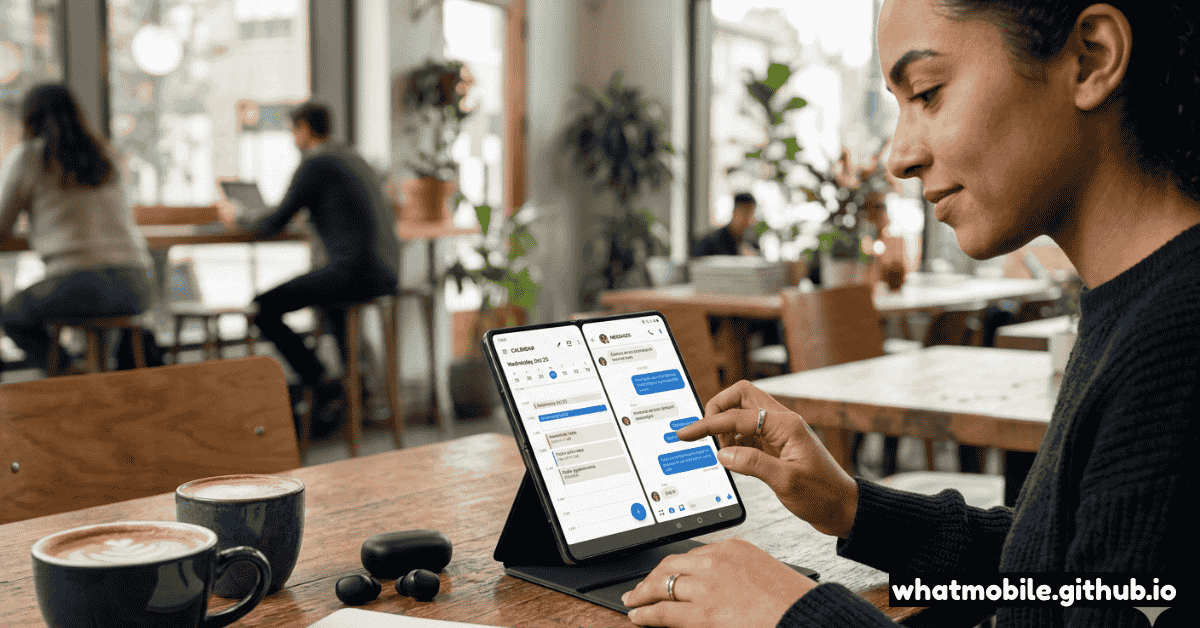
Foldable phones have arrived at a turning point. The Samsung Galaxy Z Fold 6, Google Pixel 9 Pro Fold, and Motorola Razr Plus 2024 are genuinely mature products — no longer experimental curiosities but powerful productivity and media devices that justify their premium price for the right user.
But foldables demand a different mindset. They have two screens, unique software modes, and mechanical components that need care. Most new foldable owners spend weeks not realising the full capability sitting in their hands. This guide changes that. Before starting, identify your exact foldable model with WhatPhone — the feature set varies meaningfully between generations.
Step 1: Configure Both Screens
A foldable phone is essentially two phones: a cover (outer) display and an inner (main) display. Configuring them independently unlocks dramatically better day-to-day usability.
Configure the Cover Screen
Set up Cover Screen widgets (Z Fold 6)
Settings → Cover Screen → Widgets. Add widgets for: calendar, music controls, weather, and quick contacts. The goal is to handle 70% of tasks (quick replies, music, timers, glanceable info) without ever unfolding.
Enable full app use on Cover Screen
Settings → Cover Screen → Apps on Cover Screen → Enable. Samsung's Z Fold 6 cover screen runs full Android apps at 6.2 inches, so you can use it exactly like a normal phone. Enable this and fold only when you need the large screen.
Optimise the Main (Inner) Display
Enable the Taskbar
Settings → Display → Taskbar → On. The persistent taskbar on the inner screen is transformative — it enables one-tap app switching and drag-and-drop multitasking without returning to the home screen. Pin your 4–6 most-used apps here.
Set default layout to large-screen mode
Settings → Display → Screen zoom → choose a smaller zoom level for the inner display. A smaller zoom gives more content per screen — ideal for web browsing, email, and documents. Adjust to your comfortable reading size.
Step 2: Master Flex Mode
Flex Mode is the foldable's killer feature that most users ignore. When you fold the phone to 90°, many apps split into two halves: the top half shows the app, the bottom half shows touch controls, a histogram, or a camera viewfinder.
Hands-free video calls
Open Google Meet, Zoom, or Samsung Video Call → fold to 90° on a flat surface. The camera points straight at you while the lower half shows participant gallery and controls. No need for a stand or holding the phone.
Tabletop camera mode
Open Camera → fold to 75–90° → the lower half becomes a live histogram, scene meter, and timer controls. The upper half shows your full viewfinder. Set a 3-second timer and the phone captures you hands-free — ideal for group shots and product photography.
Flex Mode for media playback
In YouTube or Netflix, fold to 90°. The video locks to the upper screen and playback controls appear on the lower. Place it on a nightstand, tray table, or desk without needing a stand or case — perfect for cooking tutorials and bedtime viewing.
Step 3: Multitasking With Three Apps at Once
The inner display's tablet-class width makes running two or three apps simultaneously genuinely productive — not a party trick.
Open Split Screen View
Long-press the Taskbar icon of any app → drag it to the left or right half of the screen. A divider appears. Tap another app in the remaining half. You now have two apps running simultaneously with a draggable divider.
Add a third app as a Pop-Up Window
With two apps in split view, tap the Recents button → tap the third app's icon → Open in Pop-Up Window. You now have a floating resizable window over two background apps — three apps visible at once.
Save as App Pair for one-tap multitasking
After setting up your preferred split view, tap the three dots at the top of the divider → Save as App Pair. This pair appears on your taskbar. Tapping it launches both apps in split view with one tap — incredibly fast for email + calendar or browser + notes.
Step 4: App Continuity — Seamless Unfolding
App Continuity means that when you unfold the device, the app you were using on the cover screen automatically expands to the inner display, exactly where you left off. When you fold back, it shrinks back. This is seamless when configured correctly.
Enable App Continuity on Samsung
Settings → Advanced Features → Labs → App Continuity → On. Some apps need individual switches toggled. Maps, Messages, WhatsApp, and Chrome all support continuity. Third-party apps that don't support large screen resizing will need the Compatibility Mode toggle.
Handle apps that don't adapt correctly
For apps that appear letterboxed or don't resize: Tap the three-dot overflow at the top of the app window → Adjust App Layout → Toggle Compatibility Mode. This forces the app to fill the screen in a stretched layout — not perfect but functional.
Step 5: Protect Your Foldable Display
The inner display is an ultra-thin flexible polymer — far more delicate than a standard Gorilla Glass phone screen. A few non-negotiable rules:
- Never use fingernails or sharp objects on the inner display — even light scratches from nails are visible and permanent
- Remove grit and debris from the hinge area before folding — particles caught in the hinge cause crease damage over time
- Keep away from sand and dust environments — the hinge gap traps particles that abrade the inner display crease
- Don't apply excessive lateral pressure on the crease — the crease is structural and forcing it flat beyond the natural position stresses the display layers
- Use a protective case that covers the outer glass on book-type folds — the outer display is standard glass and IS prone to cracking from drops
- For water exposure: Samsung Z Fold 6 is IPX8 — fully waterproof but the hinge port expels water slowly; don't submerge for extended periods